


FAQ
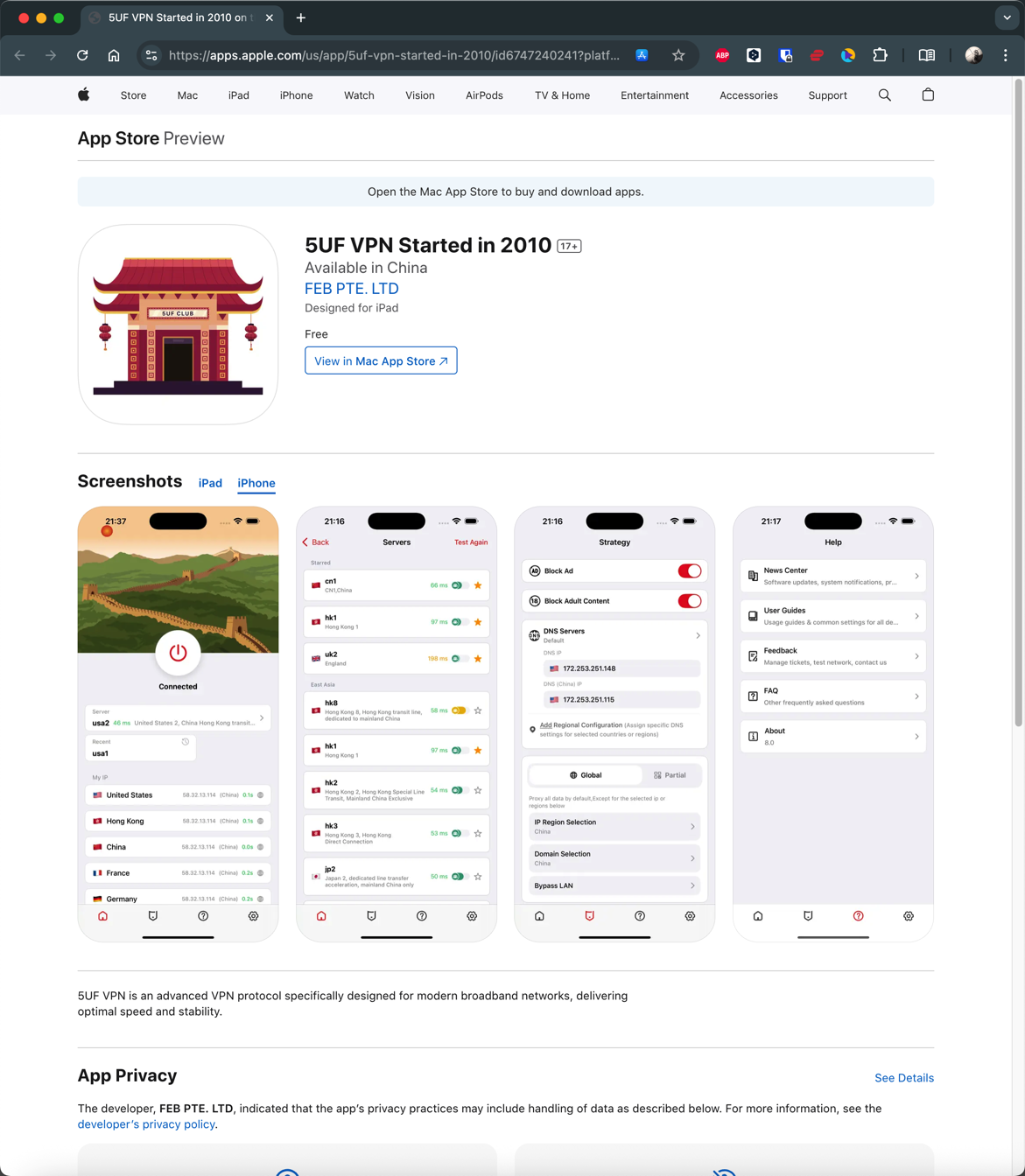
How to install 5UF APP in iPhone 

IOS download:
https://apps.apple.com/us/app/id6747240241
Chinese users need to use an account from a non-mainland China app store to download the app.
5UF VPN for Android (recommended, with changelog)
1. Download
Download here ,

2. Installation
Install APK file. (If after downloading, file becomes .zip, you will need to rename the file by deleting the .zip at the end)Support android4.0 above.
3. Use
Use the username and password on our website to Login.
PS:
Since version 3.0, the new Android client supports Trojan protocol, has a new interface, more servers, is more stable, and faster.
The old version can be used, but it is no longer updated.
Changelog:
2025.8.14 Version 4.2 Allows 5UF to be added to control panel
2025.8.8 Version 4.1 Brand New UI
2025.6.63.1 Multi-language fix
2025.5.31 Dragon Boat Festival
3.0 New kernel version, internationalization, update to Google Play
2020.04.08
Get packages from the official download center
2018.11.23
2.3 fix android 9 bug.
September 1, 2017
1.8 fix same bugs.
1.7 Added support for SS protocol
July 1, 2017
1.5 Repair customer service system error
May 12, 2017
1.1 The first public beta
May 1, 2017
1.0 released the first beta version
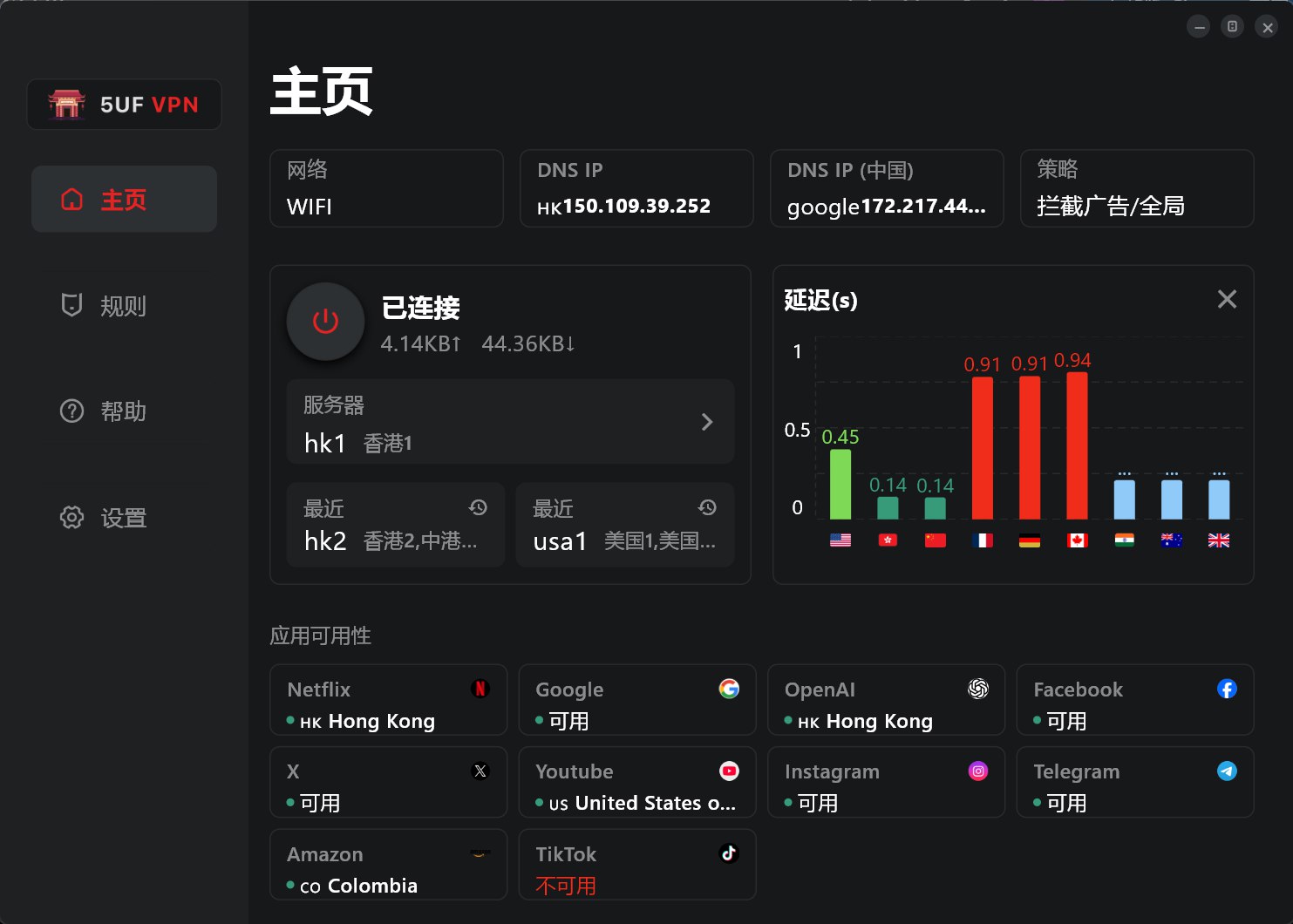
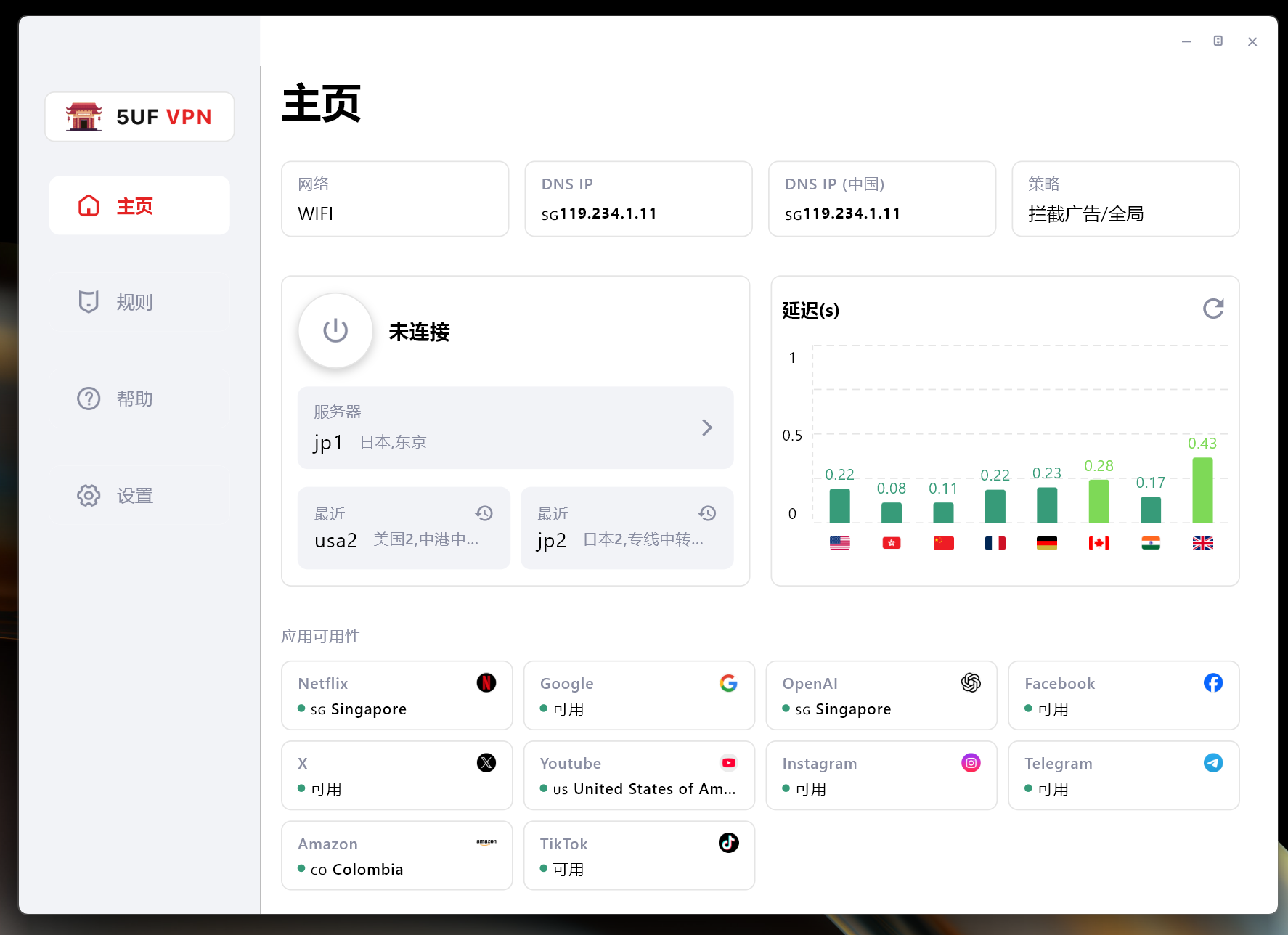
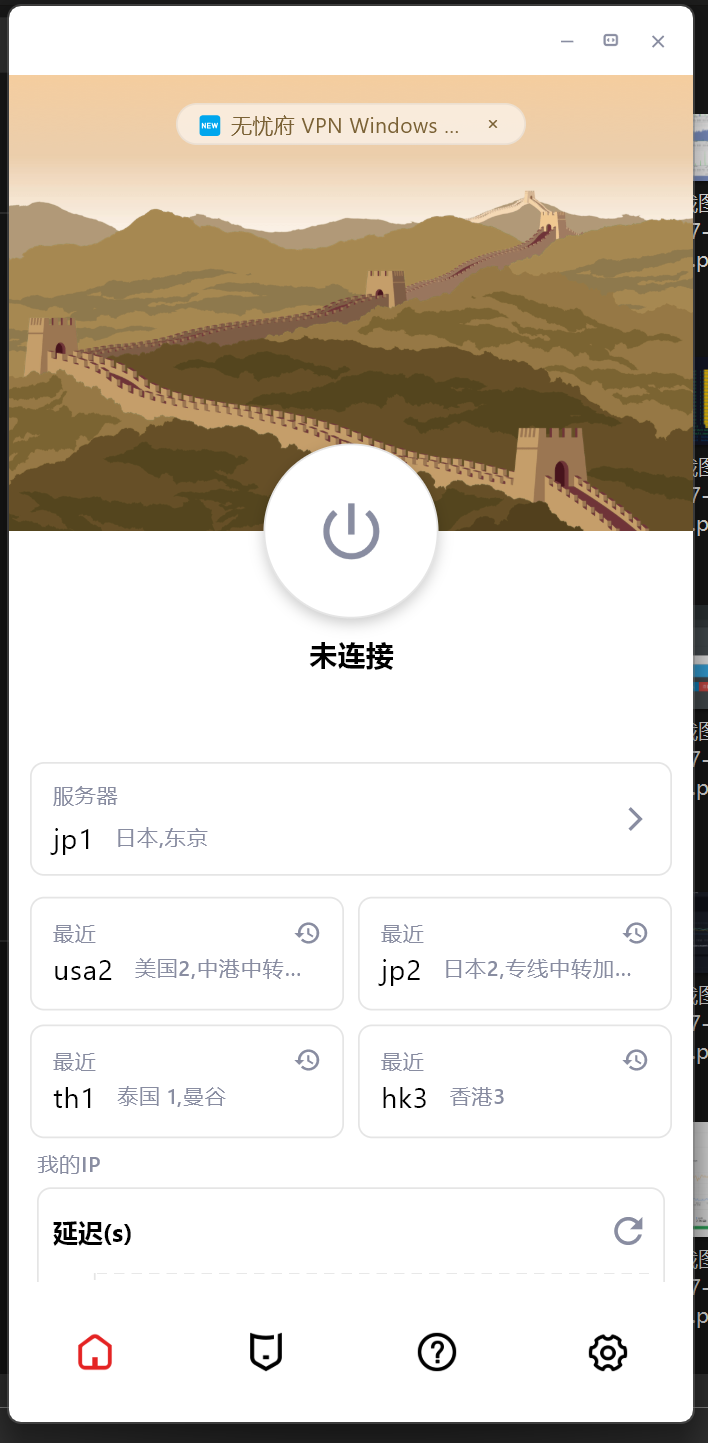
Windows one-click setup for all clients (recommended, with changelog)
最新版 4.1 客户端,修正了多个BUG,支持更多协议,连接更稳定,速度更流程,有效保护数据免受篡改与窥探。

Changelog:
2014年12月11日 1.07版 对外公布,之前我们内部测试多次,多个版本,所以首个对外的版本是1.07
2014年12月18日 1.08版 修正了最小化窗体后,会自动弹出窗口的问题。
2015年01月07日 1.09版 修正更新域名后不能使用的问题。
2015年02月11日 2.0.0.0版,增加了N多功能
解决了部分杀毒软件报病毒的问题,是因为压缩的问题,现在已经不压缩。
增加了更换DNS的功能
增加了永久路由功能
增加了添加路由和删除路由时显示百分比
测速时重新加载服务器列表
增加了恢复hosts文件的功能,部分用户因为修改了这个文件,造成部分网站不能访问
生成支持文件(方便我们的帮部分用户分析问题)
优化了部分操作逻辑,比如点击退出时提示是否清空路由,是否最小化,是否断开VPN等问题。
2015年02月15日 2.0.0.1
修复程序退出的时候,右下角的状态栏图标没有消失的问题,鼠标要放一下会自动消失,现在这个问题已经修复。
修复程序启动的时候,如果没有网络出错的问题,现在已经提示正常
win8启动的时候不再自动使用修复sstp功能,只在需要的时候在工具菜单那里运行下
2015年04月29日 2.0.0.2
修复了xp系统下,如果本地网卡是使用自定义DNS,使用我们的工具里设置google dns等后还原后会丢失原来的dns配置的问题。
增强了性能,现在不同的服务器,不同的类型都使用独立的拨号链接,互不影响,解决了以前如果前一个vpn断不开,后面一个不能拨号的问题,(以前是必须重启机器才能恢复)。
2015年09月18日 2.0.0.3
修复深圳部分小运营商运行时,初始化的问题。
增加PPTP是否加密的选项。
在设置工具里增加快速打开“网络连接”。
在没有拨号的情况下退出软件提示“退出会断开VPN" 的提示的逻辑问题。
2015年09月23日 2.0.0.4
断开和连上时在线人数自动加减1,解决断线后需要重新运行程序的问题。
2015年12月23日 2.0.0.5
修复多个连接数时,有时候判断超过连接数错误bug。
针对国内DNS环境不稳定的情况,优化了部分地区有时候 初始化 问题,现在更加稳定。
取消自动创建的拨号链接功能,现在用户的VPN连接里不会出现我们程序里自动配置的VPN连接。
除了L2TP协议外,360不再提示需要修改pbk文件。
2015年12月26日 2.0.0.6
修复L2TP协议时,重新启动时无法拨号的bug。
修复PPTP加密重新启动时无法记忆的问题。
2016年1月6日 2.0.0.7
修复在测速列表双击服务器选择不了的bug。
windows10需要禁用掉IPV6,才能解决DNS污染的问题.
2016年2月24日 2.0.0.8
修复windows10用户l2tp不能使用的问题.
增强部分网络情况下初始化失败的问题,增强了更多网络环境下的可用性.
windows10用户拨号的时候提示修复禁用IPv6.
修复生成技术支持文件的bug,同时把这个按钮放在登陆页面,确保没有登陆时也能生成技术支持文件.
修复部分网络下断开连接不生效的问题,提示已经断开,事实上没有断开,造成多个连接重拨.
修复不停的点击断开按钮,在线数会减少的bug,事实上不会真减少.
2017.4.20 3.0
完全重新架构的新版本,使用C++重新开发,更加高效
新增加:
直接支持openvpn
多语言系统中不再乱码(但还都显示是简体中文)
全新界面
增加和删除国内路由更快了,可以瞬间完成,以前需要很久的百分比,且增加过程中占用cpu比较高。
连接更多稳定可靠,旧版本在某些环境中l2tp,ikev2不能稳定使用,需要重启机器才行。
更多网络环境中可以用,以前的版本中可能会出现“登陆失败”,新版本已经对这种情况做了更多兼容处理。
2017.4.21 3.1 3.2
修复iKev2模式下,默认网关没有设置的bug
更改点击X为隐藏窗体,更熟悉国人的操作习惯,如果要退出,请在右下角托盘那里,右键退出。
3.2 修复下载配置文件不能更新的bug
2025.7.28 日 4.0
全新架构
2025.8.8 日 4.1
修复了界面还有一些链接问题
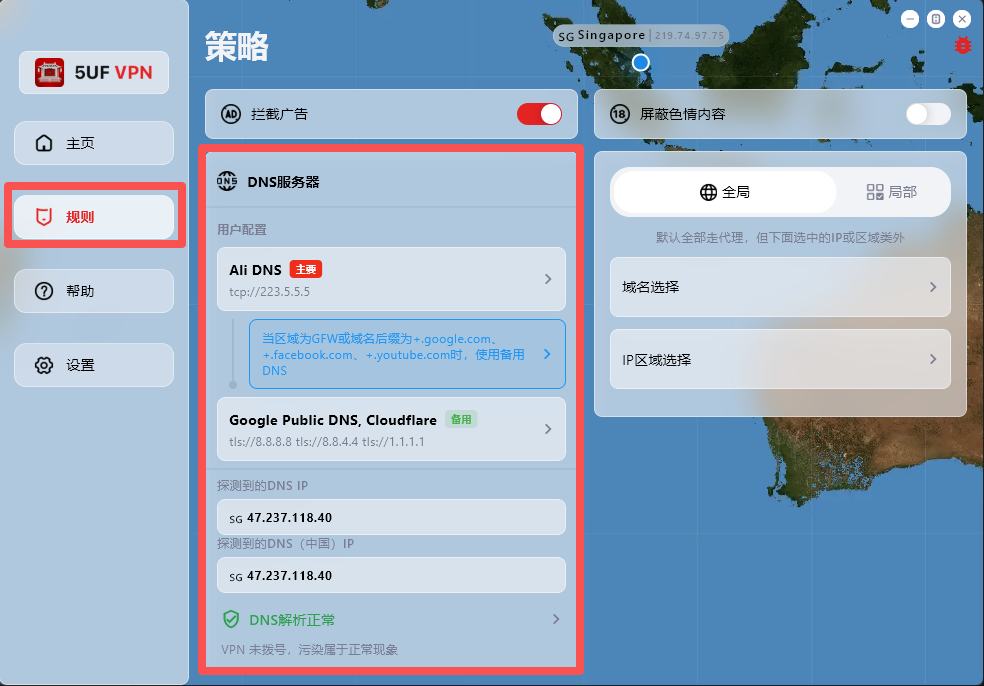
How can I change DNS to reduce DNS pollution issues?
If your network access behaves abnormally, first check and adjust DNS settings in the Rules page.
The app has built-in support for:
1. Changing DNS settings after dial-up/connection.
2. DNS connectivity checks.
3. DNS pollution detection.
Where to configure: open the app main screen, go to Rules, then modify the default DNS request settings.
One-tap preset recovery: at the bottom of the Rules page, we provide built-in presets for common regions, including Mainland China, Hong Kong/Macau, and default profiles for countries/regions such as Iran and Russia.
Dynamic IP database update: the Rules page also includes dynamic IP database update, which you can run when needed.
Why detected DNS may differ from configured DNS:
DNS probing uses temporary domain resolution to identify the actual egress resolver IP within a DNS cluster, so the detected result may not be exactly the DNS address you entered.
For example, even if you configure Google Public DNS (8.8.8.8), the detected resolver may be another cluster node responding to your request.
How do I collect logs and report issues to you quickly?
When you hit connection issues, unstable speed, or anything hard to reproduce, rich diagnostics help us troubleshoot much faster.
Recommended (best): use the in-app ticket / feedback flow. In recent builds you can attach profiles, network diagnostics, speed-test results, and detailed logs right inside the ticket so support can triage quickly.
Can't find the ticket entry? Open Help → About (or the equivalent section in your client) — you'll usually find shortcuts to logs and network diagnostics there; export or capture what you can, then reach out through whichever channel you prefer.
Tips: try to reproduce once before sending, note time, network type (cellular vs Wi‑Fi, rough region), and your app version; it speeds things up.
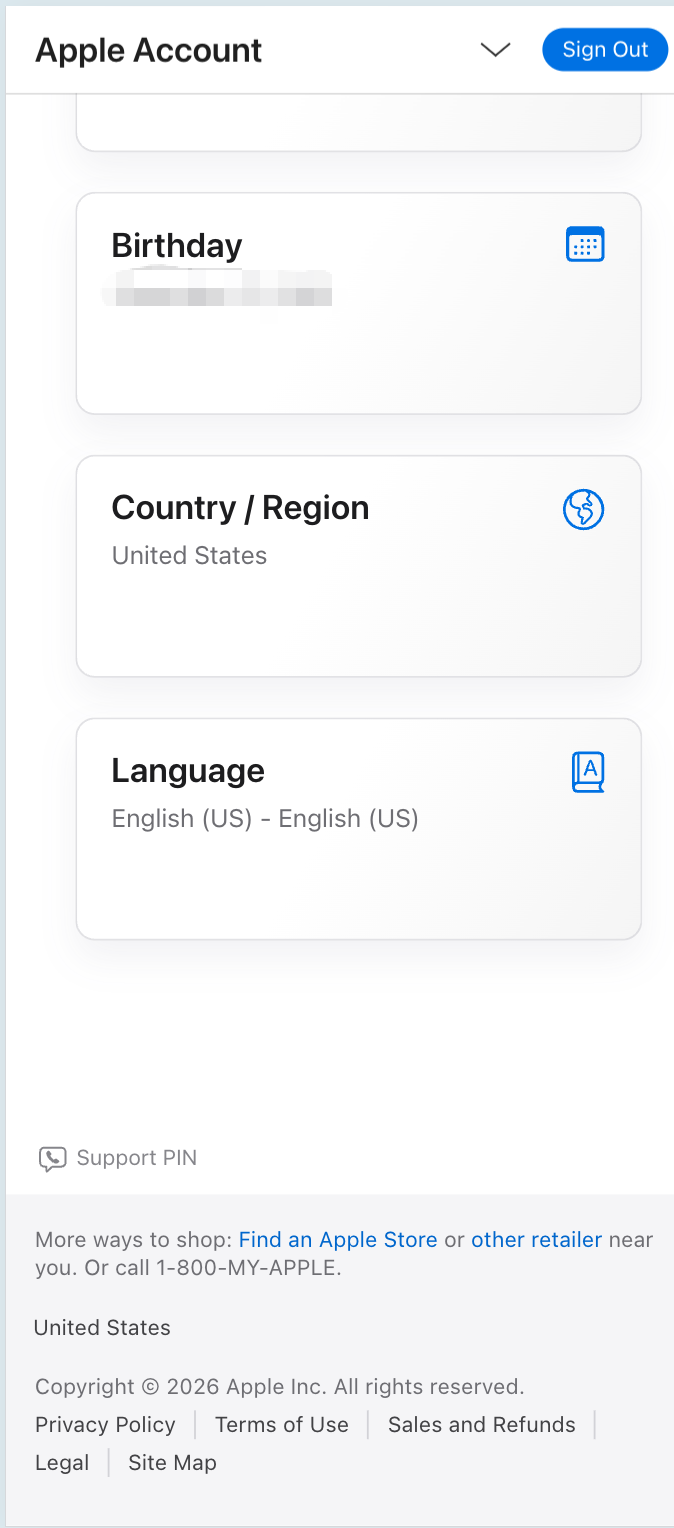
How do I check which country or region my Apple ID is set to?
To see which country or region your Apple ID is registered in (for example US, Hong Kong, etc.), use Apple’s official account site.
Recommended: sign in with your browser and open the account information section—look for Country or Region.
Direct link (sign in required): Apple ID — Account information
Note: menus may vary slightly by language or iOS version. On iPhone you can also check under Settings → Apple ID → Media & Purchases / Payment & Shipping, or the region shown for the App Store account.
Your region affects which apps appear in the App Store and which payment methods are available. Use an Apple ID that matches the storefront you need, and follow Apple’s terms.
How can I verify that using 5UF VPN is safe?
A VPN adds an encrypted tunnel between you and the internet, which lowers the chance of casual eavesdropping on plain HTTP in untrusted networks. Below is a practical checklist plus notes on privacy, technology, and how we operate.
1. Install only from official sources
- Use official app stores on mobile and the official 5UF website (or links we publish) on desktop; verify the domain before installing.
- Avoid “cracked” builds and random APK shares. Many free or unknown VPNs have a poor track record for ads, data resale, or malware.
2. Account work only on real HTTPS sites
For login, billing, or subscription pages, confirm a trusted domain and HTTPS in the address bar.
3. After connecting, test your IP and DNS (recommended)
With the VPN on and other proxies off, open BrowserLeaks — My IP Address to see the exit IP and rough region. The same site offers DNS leak and WebRTC tests. Results depend on split tunneling, extensions, and dual-stack networks—use them as signals, not a single proof.
4. Can ISPs or police “know I use a VPN”?
Technically, providers often see that your device talks to a remote endpoint with encrypted traffic, volume, and timing. They generally cannot read your HTTPS page contents the way they could with old plain HTTP. Sites and modern apps add another layer of end-to-end TLS that the VPN operator normally cannot decrypt either. What authorities may obtain still depends on law and due process—a VPN is not invisibility.
5. Xray-based stack
Our service commonly builds on open projects such as Xray (for example XTLS/Xray-core) with transports like Trojan wrapped in TLS. Open source enables community review; it is not the same as a formal proof against every adversary, but it is far more inspectable than a closed black box. Keep clients updated and download only from trusted sources.
6. What can the operator see?
In typical HTTPS browsing, we cannot decrypt the payload between you and the website. Exact data categories are spelled out in our privacy policy.
7. Singapore company and compliance
We are incorporated in Singapore and operate under its legal framework. The privacy policy explains retention, security practices, and how we may respond to lawful requests. We do not treat selling user privacy as a business model. Read the policy on our site; open a ticket for questions.
8. Bottom line
No VPN replaces good hygiene—official clients first, skepticism toward “free” unknown VPNs, and regular updates. Report suspicious clones through official channels.
What is the difference between relay nodes and direct nodes?

Relay (transit) nodes send traffic to a relay inside mainland China first, then forward it toward overseas destinations over dedicated or optimized backhaul. That path is often more predictable than raw public-internet crossings, which can mean better stability and higher peak performance for cross-border use. Building and operating relays costs more, so relay plans may differ from plain direct routes in pricing or lineup.
Direct nodes rely more on the public internet, connecting straight to overseas servers. Cross-border public paths may see packet loss, throttling, or intermittent blocking in some regions or hours. Even when a route works, speeds can plunge at busy times. If you are in mainland China and need reliability, relay lines are usually the safer choice.
5UF is among the few providers that can offer lawful mainland relay capacity alongside standard options. We also tune routing for selected sites and services. Example: some Hong Kong nodes may not work well with OpenAI ChatGPT over a plain path, but with relay and routing optimization, Hong Kong and similar regions can reach those AI services more reliably. If a specific AI site or service fails for you, contact support so we can prioritize routing fixes.
Available nodes depend on the app and the list on our site; plans differ in node types and counts. See your subscription details for what applies to you.
How to quickly select a server and run speed tests in the 5UF VPN app
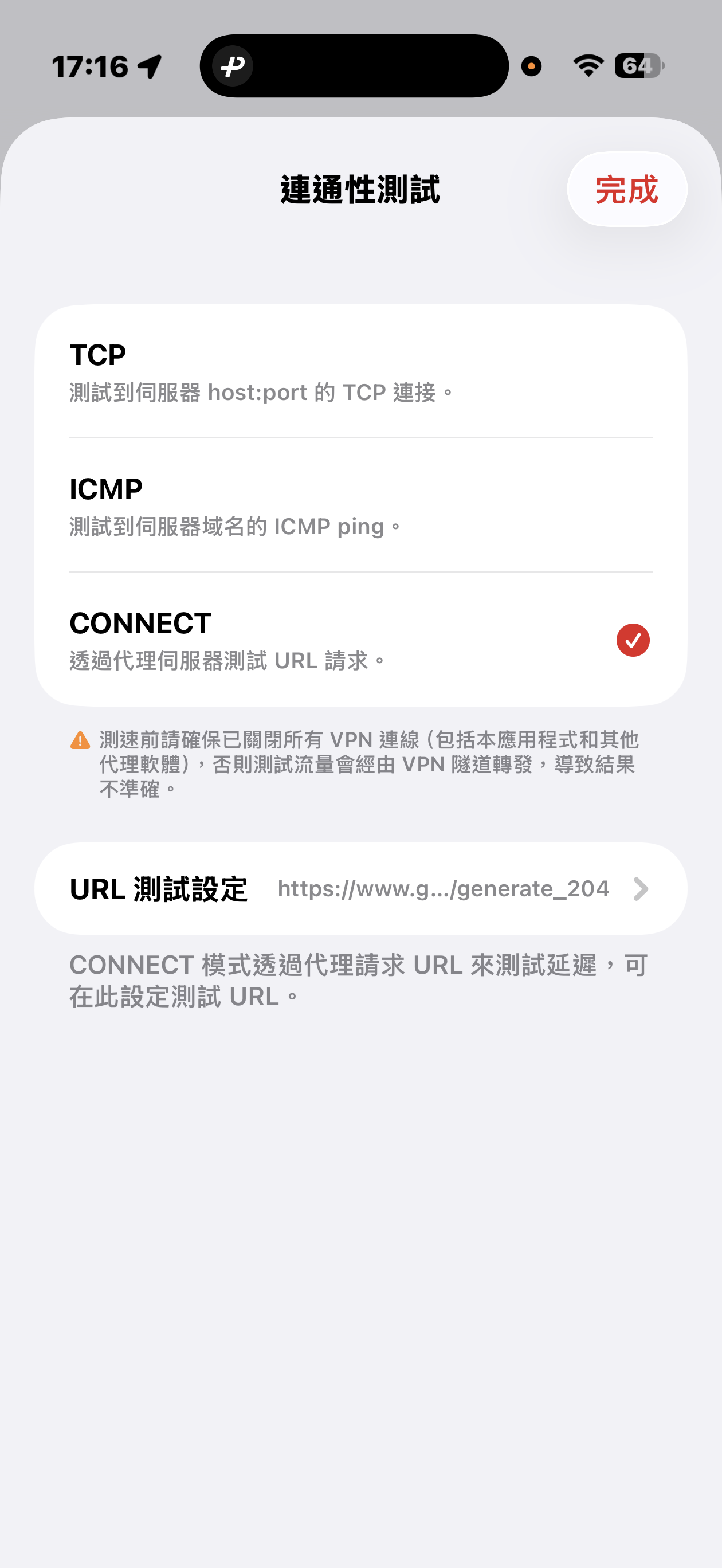
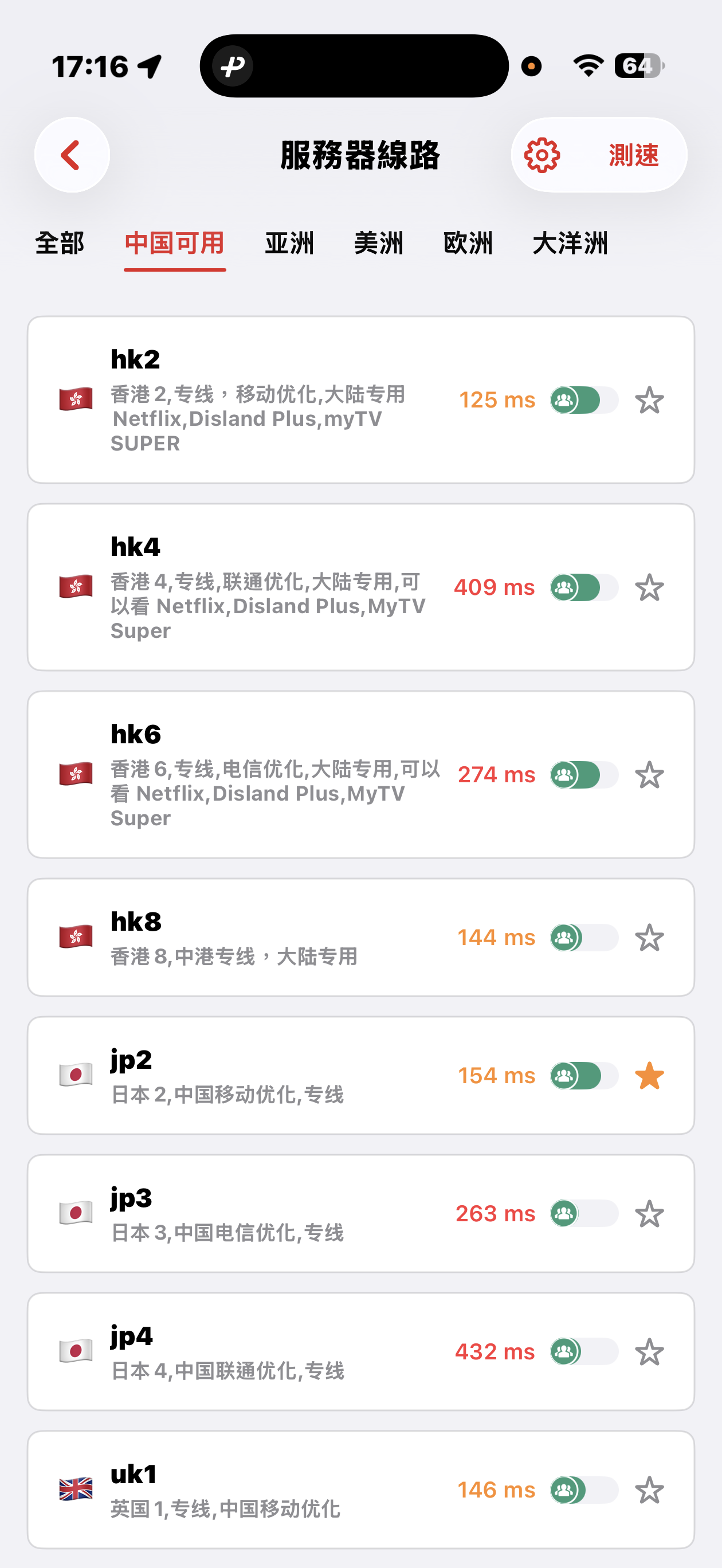
The 5UF VPN app offers quick connectivity tests from the server list screen: tap Speed test at the top right (sometimes next to a settings icon), open Connectivity test, then pick a method.
Three test modes
- TCP: Measures how long it takes to complete a TCP handshake to each server host and port. The app runs multiple probes and shows an average so you can compare routes quickly.
- ICMP: Sends ICMP echo (ping) to the server hostname, similar to the ping tools built into desktop and mobile systems, to see round-trip latency.
- CONNECT: Issues an HTTP(S) request to a test URL through the proxy path, which best mimics real VPN usage. It is usually the slowest mode, but in heavily restricted networks it helps find nodes that still work. You can change the test URL under URL test settings.
Before testing, disconnect all VPN and proxy software, including this app. Otherwise traffic may still go through a tunnel and the numbers will not reflect your raw local path.
Mainland China: Strict blocking may make some overseas nodes unreachable; that can be normal. Use the Available in China category for optimized dedicated lines that aim to stay usable under heavy filtering, with carrier hints for China Mobile, China Unicom, and China Telecom. Pick a line that matches your ISP or SIM.
Choosing a server: Auto-select uses TCP results, then picks one server at random from among the fastest, balancing speed and load. You can also browse by geography (for example Asia, Americas, Europe) and choose manually.
Where can I read release notes after an app or website update?
Major releases and infrastructure changes are announced under News. The app may also show its own upgrade prompts—follow in-app release notes when you update.
Using Sing-box VT on Mac with 5UF VPN
To use a third-party client on macOS, install Sing-box VT from the Mac App Store (third-party software, not published by 5UF). 5UF serves a Trojan (Xray) compatible profile as a sing-box subscription that includes server lists and routing rules.
1. Install the app
You need a non-Mainland-China Apple ID. Install from the App Store: Sing-box VT
2. Copy your sing-box URL
Sign in to the 5UF user panel in a browser and open the Xray (Trojan) configuration page (typically https://www.5ufclub.com/xray_config). Copy the full sing-box configuration subscription URL with the one-click copy button.
That URL embeds your private UUID—do not share it. If it may have leaked, use Change UUID on the same page so the old URLs stop working immediately, then copy the new sing-box link and import again.
3. Import into Sing-box VT
In the app, add or update a profile by importing from URL / subscription (wording depends on the app version), paste the copied link, save, and let the app refresh nodes and rule sets.
4. Connect and test
Enable the profile and visit any site that shows your public IP to confirm traffic exits through the VPN. If import or connection fails, check that the URL was copied completely, your account is active, and the network is not blocking the endpoints; generating a new UUID and re-importing often resolves stale links.
Screenshots (UI may change between releases):
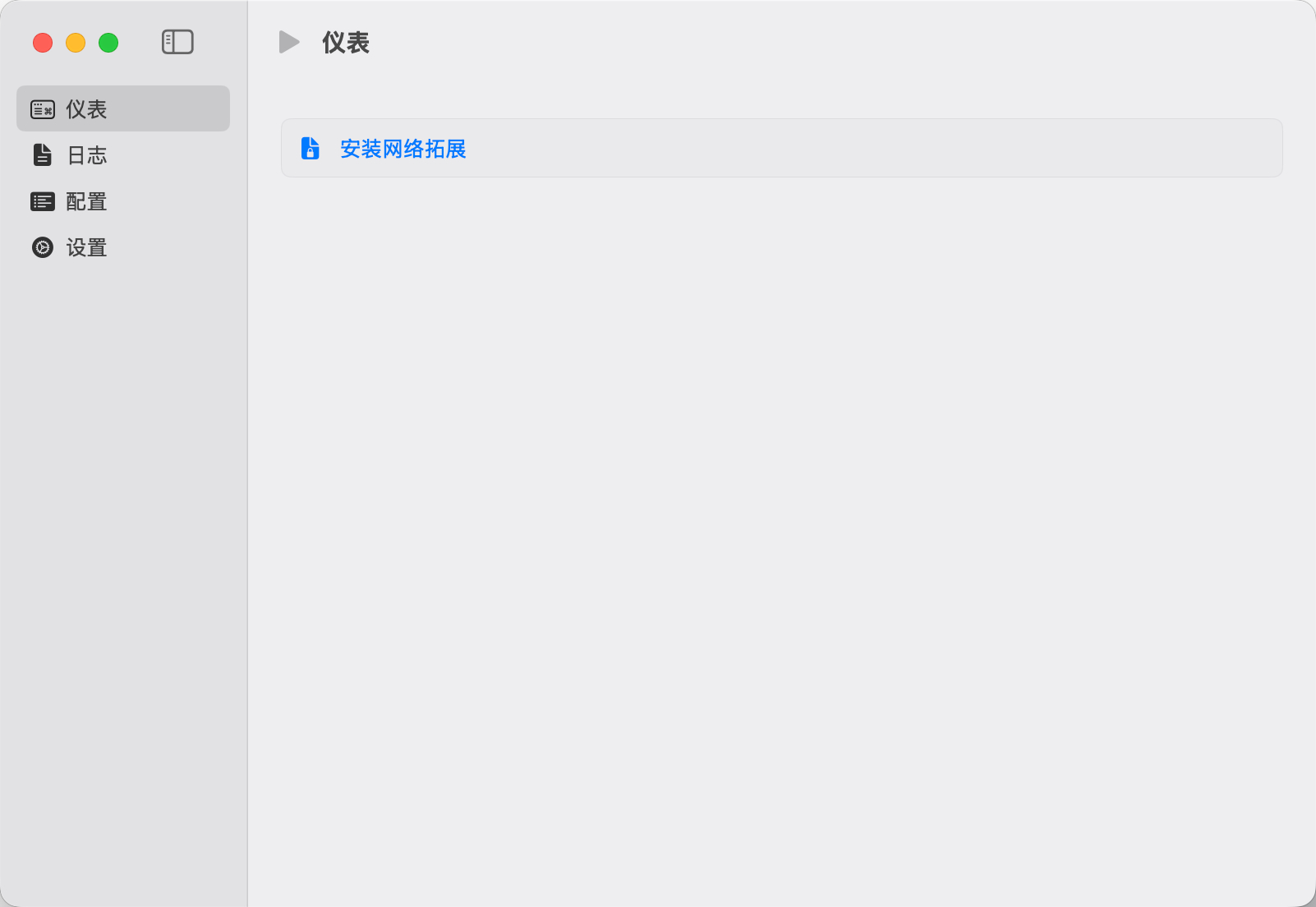
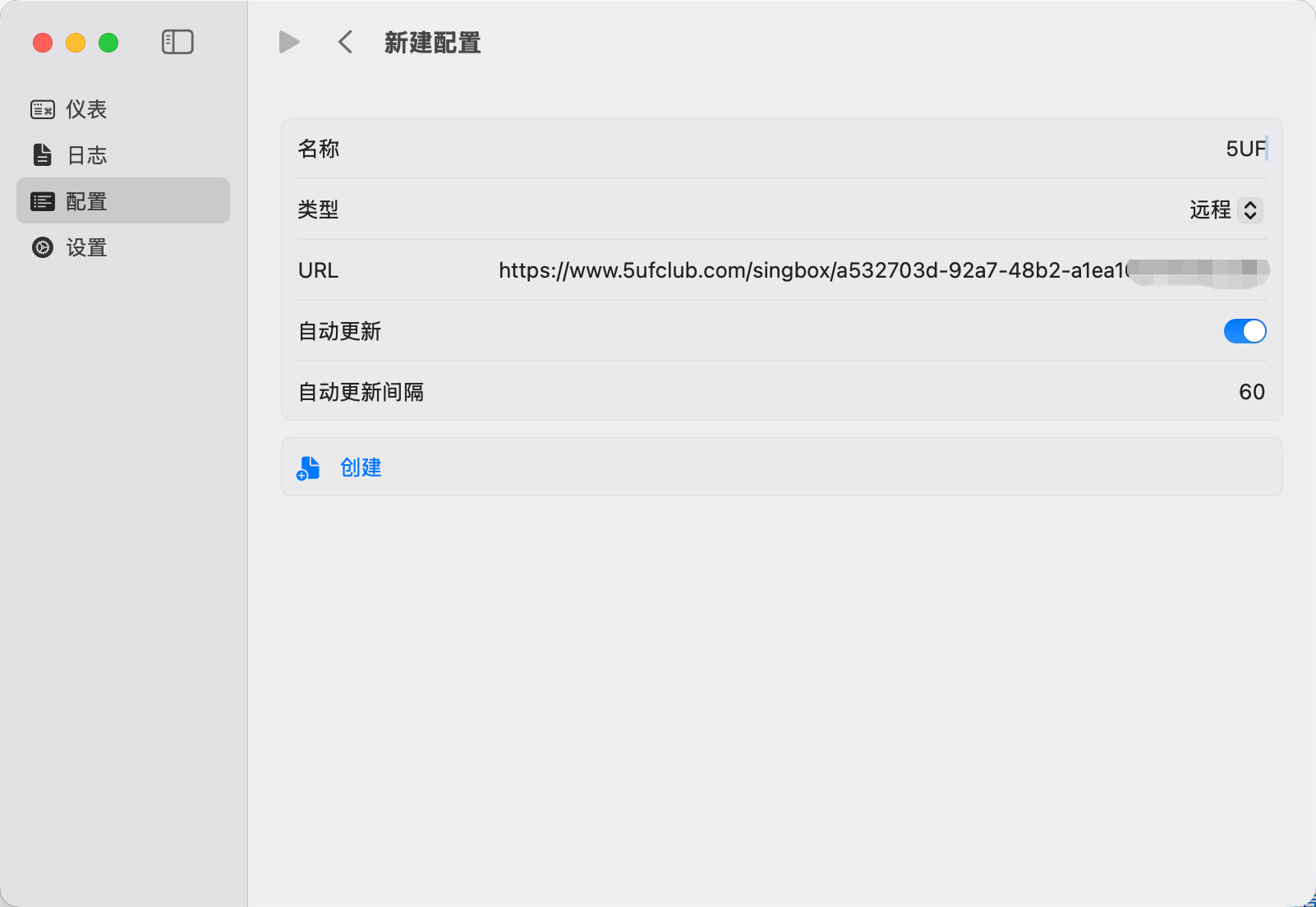
For the official all-in-one experience, use the 5UF VPN Mac app from our site. This article targets users who prefer the sing-box ecosystem.
What if the new app does not run on Windows 7 or Windows 8?
The latest official 5UF VPN app for Windows is built and tested for newer Windows releases. On Windows 7 and Windows 8, which are largely out of mainstream support, you may see install failures, startup issues, or connection problems. We cannot guarantee the same experience as the new app on those systems in the near term.
If you must stay on an old Windows version, consider one of the following:
- Upgrade Windows to a supported release your hardware can run (for example Windows 10 or 11), then install the latest official app; or
- Use a legacy Windows build of our client where still supported (feature and security updates may lag; follow site or support guidance); or
- Use Super VPN (browser extension) for browser-based access; or
- Use a third-party VPN client with manual setup: How to use a third-party app with 5UF VPN on Windows (tutorial).
Whenever possible, we still recommend a supported OS + latest official app for the best stability and security.
What if the official app has compatibility or connection issues on iOS?
Make sure 5UF VPN is the latest version from the App Store. Builds 5.3 and newer officially support iOS 16 and later, fixing most cases where the app could not run on iOS 16. If your iPhone or iPad runs iOS 16+, update the app to 5.3 or higher (use the version number shown in the App Store).
More details: iOS client update announcement.
On iOS 15 or earlier, or if the hardware cannot upgrade to iOS 16+, the official app may still be limited. You can:
- Upgrade iOS as far as your device allows, then install or update the official app; or
- Use a third-party VPN client with 5UF where appropriate.
Tutorial: How to use a third-party app with 5UF VPN
If issues remain on 5.3+, contact support with your iOS and app version.
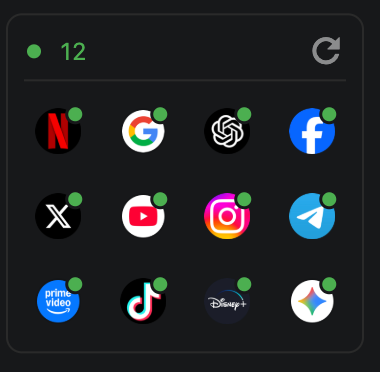
What is the app “availability test” on the home screen, and how does it work?
The availability test simulates requests to dedicated check URLs for selected apps. Based on what comes back, it can help you gauge whether your current network can reach those apps and whether you appear to fall into a given country or region’s service area.
Please note: results are not guaranteed to be accurate, and not every service can clearly report a country or region. The feature is meant for a quick, practical snapshot of app reachability in your current environment—not a definitive geo or compliance check.
Many availability checks are built in. You can add or remove the apps you care about in Settings.
Each run is very fast, uses very little data, and has a minimal resource footprint on your device.
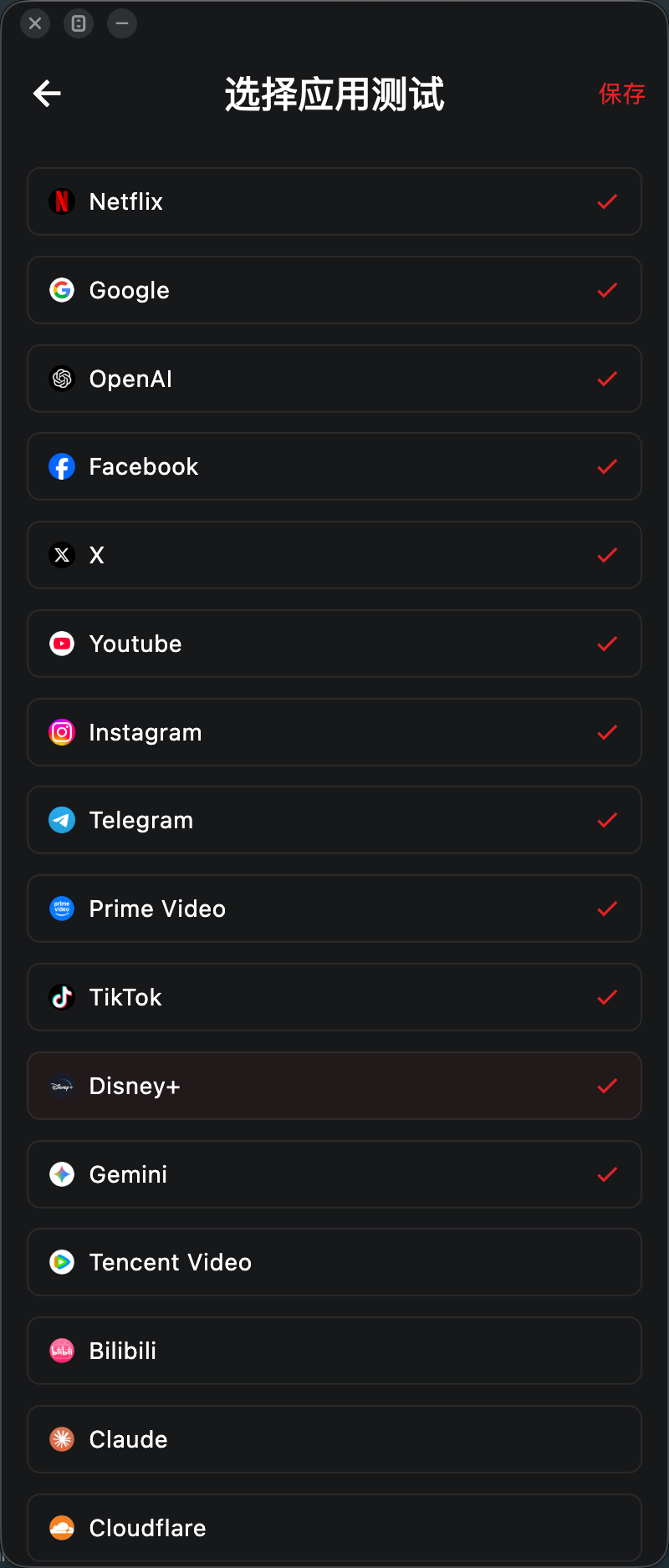
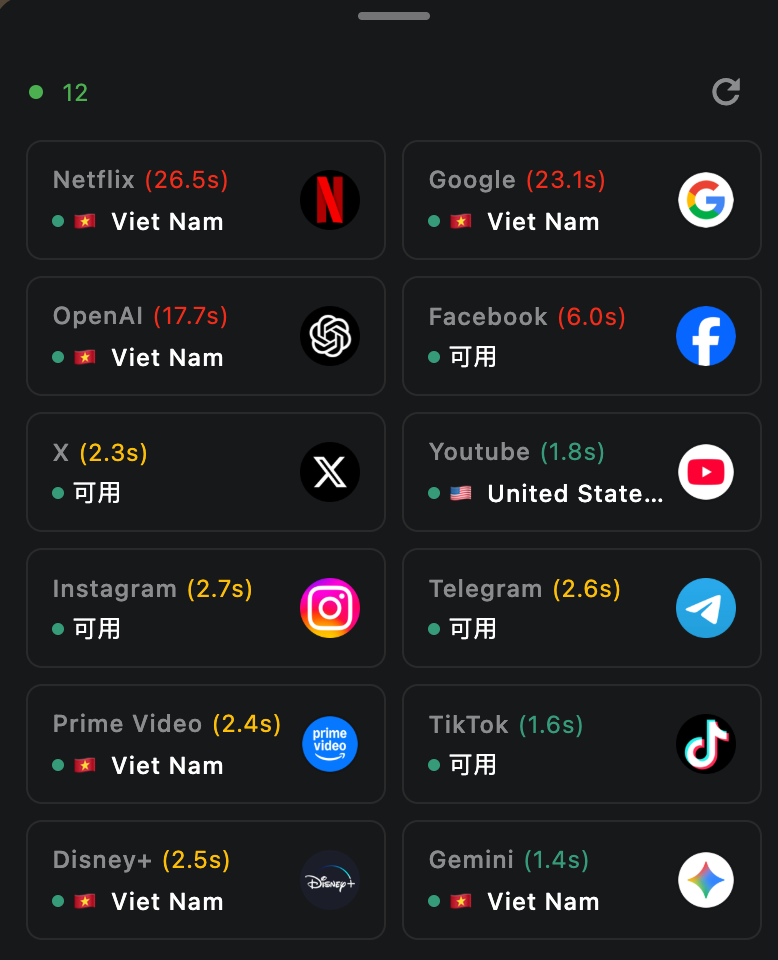
How does the 5UF VPN app home screen speed test work, and will it use much data?
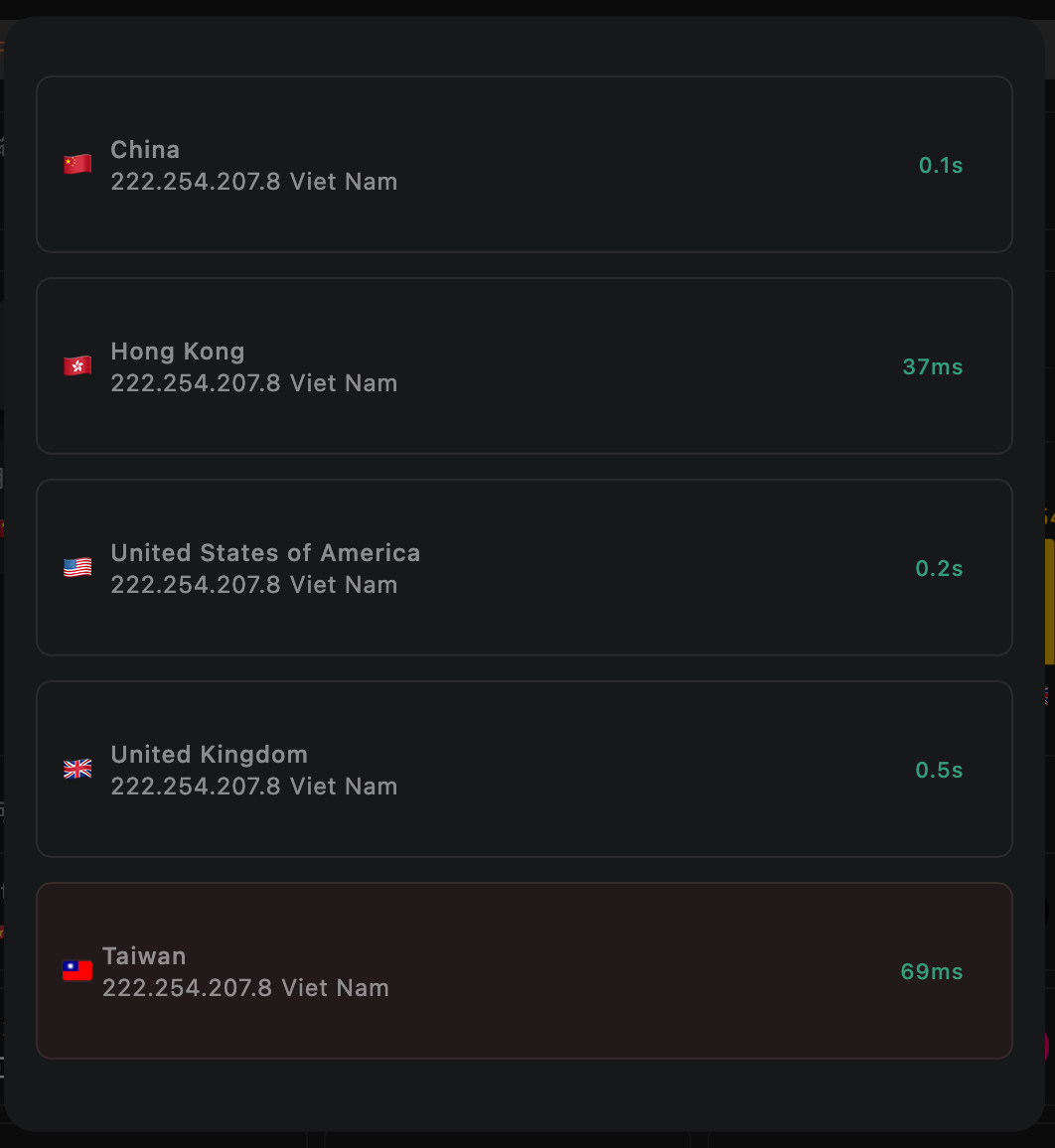
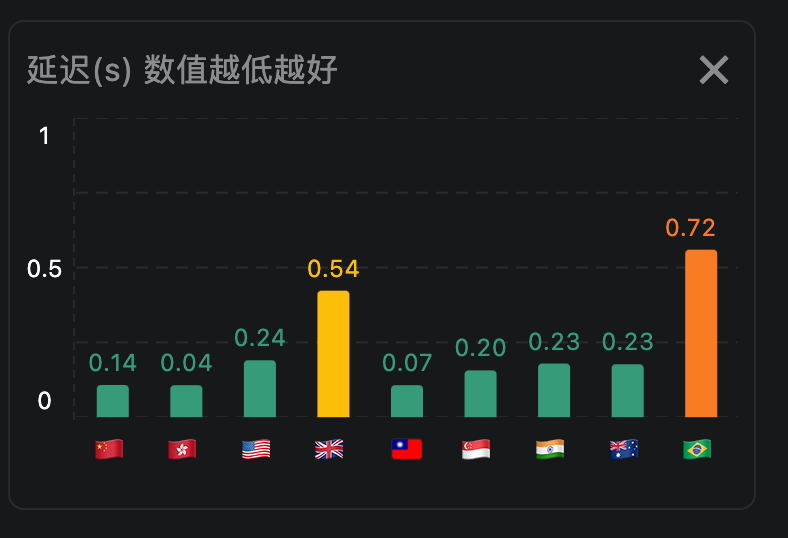
On the 5UF VPN (V5) home screen, the speed test sends a very small HTTP request to our dedicated test page. The page only shows your egress IP, so data usage is minimal and it should not meaningfully affect your allowance or billing.
The test measures network latency (how quickly you can reach a given node), not your maximum download speed. Unlike many tools that download large files to estimate peak bandwidth, we focus on round-trip delay to that node only.
We take multiple samples and show an average. Lower numbers mean faster response (lower latency) to that node.
Multiple Connections Issue
If the app reports that the connection limit has been reached but you confirm you are not actually using more devices than your plan allows, wait a short while first: the system will usually remove stale sessions automatically.
If it still does not clear after about five minutes and you confirm no one else is sharing the account, you can:
- Open the online sessions page in a browser (sign in required): /transferlog/vpn/online/1/
- Or in the app: go to Settings, open your profile card, tap Online connections, then swipe left on a session to force disconnect it.
Important: If a device is actively using the VPN, a forced disconnect may reconnect immediately. Stop or disconnect the VPN on that device first, then force the session offline if needed.
What to do if the VPN cannot connect or is too slow
If you are using the latest 5UF VPN app, long-term connection failure is usually uncommon.
If you are on an older iOS release (for example iOS 15 or earlier) or you cannot use the official app on your device, you may hit compatibility or installation limits. Use a third-party VPN client with 5UF and follow this guide: How to use a third-party app with 5UF VPN (tutorial). The reinstall, speed-test, and ticket steps below mainly apply when you can run the official app.
On iOS 16 or later, update the official app to 5.3 or newer from the App Store before the steps below.
If the VPN cannot connect, the Connect button does nothing, throughput feels sluggish, or you are connected yet nothing resolves over the tunnel, work through this checklist:
1. What if tapping Connect does nothing?
This is usually not caused by the server itself. In most cases, the app was denied VPN permission the first time it asked the system to create the VPN connection.
The fastest solution is to reinstall the app.
- Uninstall the current app
- Install the latest 5UF VPN app again
- When you tap Connect again, allow the system to create the VPN connection
If the first permission request was denied, the system often will not properly trigger the VPN authorization flow again, so reinstalling is usually the fastest and simplest solution.
2. What if the VPN connects but the speed is slow?
The latest app already includes built-in speed testing and app availability checks on the home page, so you can evaluate the current network condition before switching servers blindly.
- You can test latency for servers in different countries from the home page
- In general, a result of under 1 second is considered relatively normal
- After switching to another server, the app can test again so you can compare quickly
- The app also checks availability for major services such as TikTok
- It can also help you identify which service region the current server is closer to, such as Japan or Hong Kong
These tools help you quickly understand whether the problem is caused by the current server, your current network environment, or the service you are trying to use.
3. The tunnel shows connected, but absolutely nothing loads — then what?
If the VPN connects successfully yet browsers and apps remain completely unreachable, don't assume it's only the remote node — check whether your local uplink network is blocking or rewriting traffic.
- Switch networks (Wi‑Fi vs cellular vs another ISP hotspot). If browsing works normally on another network, the issue is likely specific to your previous network exit.
- Clarify whether this ever worked before on the same network, or started only recently — that timeline narrows investigations a lot.
When you're already in the connected-but-no-Internet situation and reinstalling, plus resetting rules to defaults/clearing custom policies, still doesn't help — try a full quit of the desktop/mobile client:
- iOS/iPad/macOS: make sure there's no lingering VPN/control icon in the menu/status area after you quit (exact UI varies). If unsure, swipe the app away from the app switcher, then reboot when needed.
- Windows: ensure the tray icon is gone — if unsure, inspect Task Manager for orphaned processes or restart Windows before launching only the 5UF client.
After a clean reopen (or reboot), open a ticket and attach network diagnostics, speed test output, app availability results, and uploaded logs wherever the form offers them — those artefacts help us troubleshoot stubborn edge cases faster.
4. What if none of this fixes it?
If you followed the checklist but the VPN stays slow, never connects, or still cannot reach anything while connected, use the integrated ticket wizard and ping support.
- Open the support ticket section in the latest app
- At the bottom of each ticket page, you will see related action buttons
- Send the test results to support
- Our support team can use your speed test, app availability test, and network diagnostic results to identify the issue faster
The ticket system now supports better email and push notifications, making it easier for us to contact you and solve the issue more quickly.
Recommendation: when you run into a problem, start with the built-in speed test, app availability check, and ticket feedback tools in the latest 5UF VPN app. This is usually faster and more accurate than describing the problem manually.
TikTok not working? Quick 5UF VPN setup guide
If TikTok still shows a black screen, fails to load, or redirects to Douyin even after you connect to a VPN, the problem is usually not just the IP address. TikTok also checks your current phone and network environment.
We recommend using the latest 5UF VPN app.
Quick setup:
- Fully close TikTok first.
- Turn on Airplane Mode and wait a few seconds.
- While Airplane Mode is on, manually turn Wi-Fi back on.
- Open the 5UF VPN app and connect to an available server.
- After the VPN is connected, open TikTok.
- Once TikTok loads normally, you can usually turn off Airplane Mode and return to normal mode.
Recommendations:
- Try to avoid Hong Kong servers, as they may affect TikTok region detection.
- For the same TikTok account, try to keep using the same server to avoid cross-region recommendations.
- If one server does not work well, switch to another server in the same region instead of changing countries too often.
If it still does not work:
- Switch between Wi-Fi and mobile data, then try again.
- Change to another non-Hong Kong server.
- Fully close TikTok and reopen it.
For long-term stable TikTok use, keep using the latest 5UF VPN app and try to maintain a stable server and network environment.
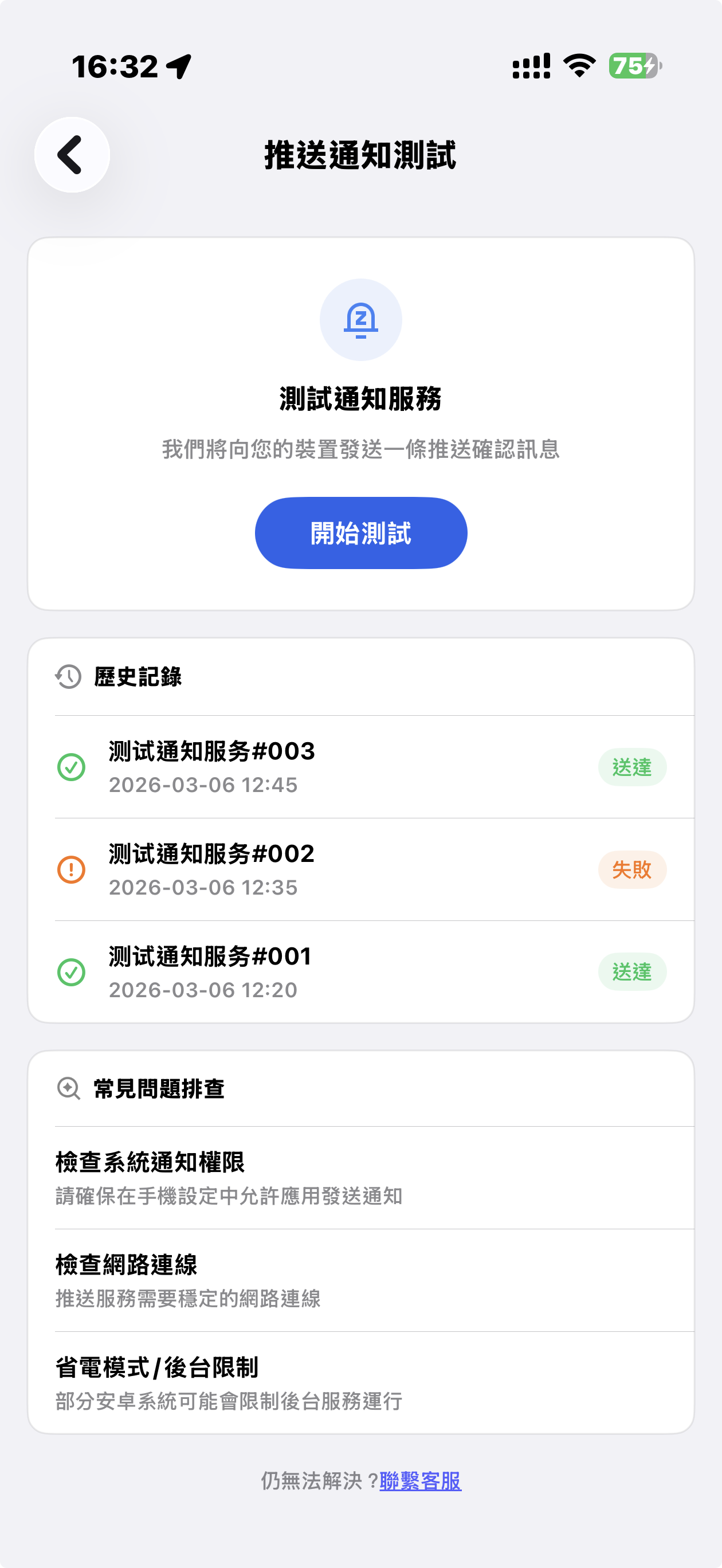
5UF VPN Push Notification Test – FAQ (English Version)
1. What is the Push Notification Test?
To ensure you receive customer support replies, account alerts, and important service updates, 5UF VPN now includes a Push Notification Test feature.
Tap “Start Test,” and a test notification will be sent to your device. The result will show:
-
✅ Delivered
-
❌ Failed
This helps you verify whether push notifications are working properly.
2. Why do VPN apps face more push issues?
VPN apps are more likely to encounter push delivery issues due to:
-
Android devices in China not supporting Google FCM
-
Manufacturer ROM restrictions (MIUI, EMUI, ColorOS, etc.)
-
Aggressive battery optimization
-
Network policy conflicts
Regular testing is recommended.
3. Special Notice for Android Devices in Mainland China (Important)
Android devices sold in Mainland China:
-
❌ Often do not support Google FCM
-
❌ May restrict overseas push channels
-
❌ Frequently disable background connections
You may need to:
1️⃣ Enable Auto Start
Settings → App Management → 5UF VPN → Allow Auto Start
2️⃣ Disable Battery Optimization
Settings → Battery → App Power Management → No Restrictions
3️⃣ Allow Background Activity
Make sure the app is not restricted or “deep sleeping.”
Brand-specific paths:
-
Huawei: Battery → App Launch Management
-
Xiaomi: App Management → Battery Saver
-
OPPO / vivo: Background Freeze Management
4. What if the test shows “Failed”?
Please check:
-
Notification permissions are enabled
-
Network connection is stable
-
Restart the device
Some Android systems temporarily suspend push channels.
5. Delivered but no popup?
Possible reasons:
-
You were using the app
-
Notification was delivered silently
-
Marked as low priority
Check your notification history.
6. Does VPN status affect push delivery?
Generally no.
However, delays may occur when:
-
Switching VPN nodes
-
Experiencing unstable network
-
Device enters deep power-saving mode
7. When should I test?
Recommended after:
-
Changing devices
-
Updating system
-
Updating 5UF VPN
-
Suspecting missed notifications
8. Why are push notifications important?
Push notifications ensure you receive:
-
🔔 Customer support replies
-
🔔 Account alerts
-
🔔 Service maintenance notices
-
🔔 Security updates
This is especially important for VPN users.
9. Still not working?
Please contact support in the app and provide:
-
Device brand & model
-
OS version
-
Screenshot of test result
We’ll assist you further.
How to Clear Cache Issues (Windows)
-
Close 5UF VPN completely
-
Make sure the application is fully exited.
-
Check the system tray and Task Manager to ensure no 5UF VPN processes are running.
-
-
Navigate to the cache folder
-
Open File Explorer and go to:
C:/Users/user/AppData/Roaming/com.top.wuf
-
Important: Replace user with your own Windows username, as that folder represents your account.
-
-
Delete all files inside this folder
-
Select all files and folders inside com.top.wuf and delete them.
-
This clears any cached data that may be causing issues.
-
-
Restart 5UF VPN with administrator rights
-
Right-click the 5UF VPN icon and choose Run as administrator.
-
This ensures the app can rebuild its cache properly and avoids permission issues.
-
✅ After this process, 5UF VPN should start fresh, without old cached data causing errors or slowdowns.